
Please ensure that Bluetooth® is enabled on your smartphone. On Android, a popup informs you that Bluetooth® is deactivated, but this is not the case for the iOS version.
Make sure you're within range of your module so that the connection can be established.
If, despite everything, the module has been added but the connection never takes place, check that you have correctly carried out the authentication procedure.
If not, restart your Bluetooth® and your application.
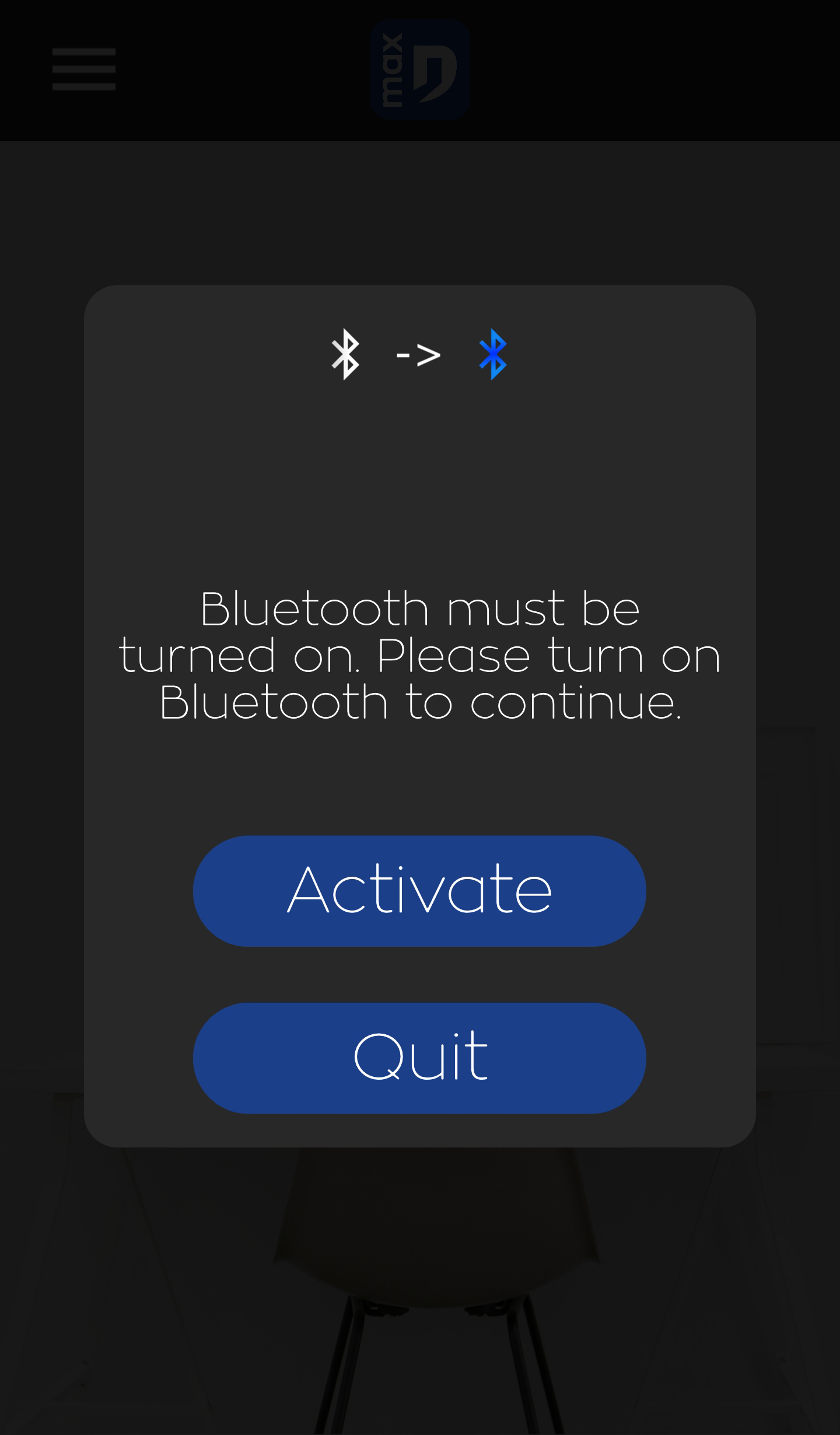
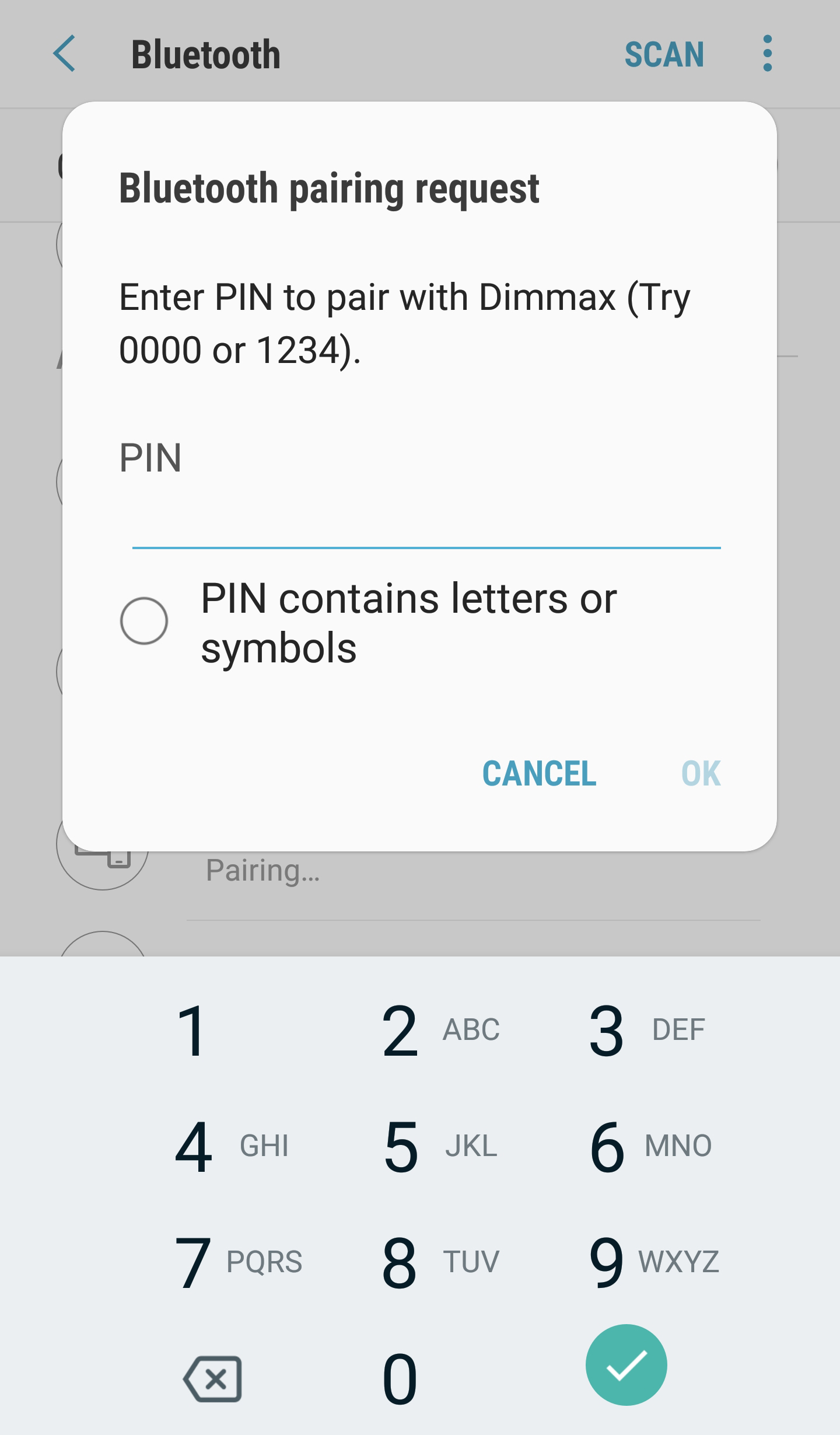
Dmax modules can only be added in the Dmax application via the "add a device" tab. Modules cannot be added via the Android or iOS Bluetooth® menu.
As the smartphone can't connect without the app, it thinks the connection requires a code.
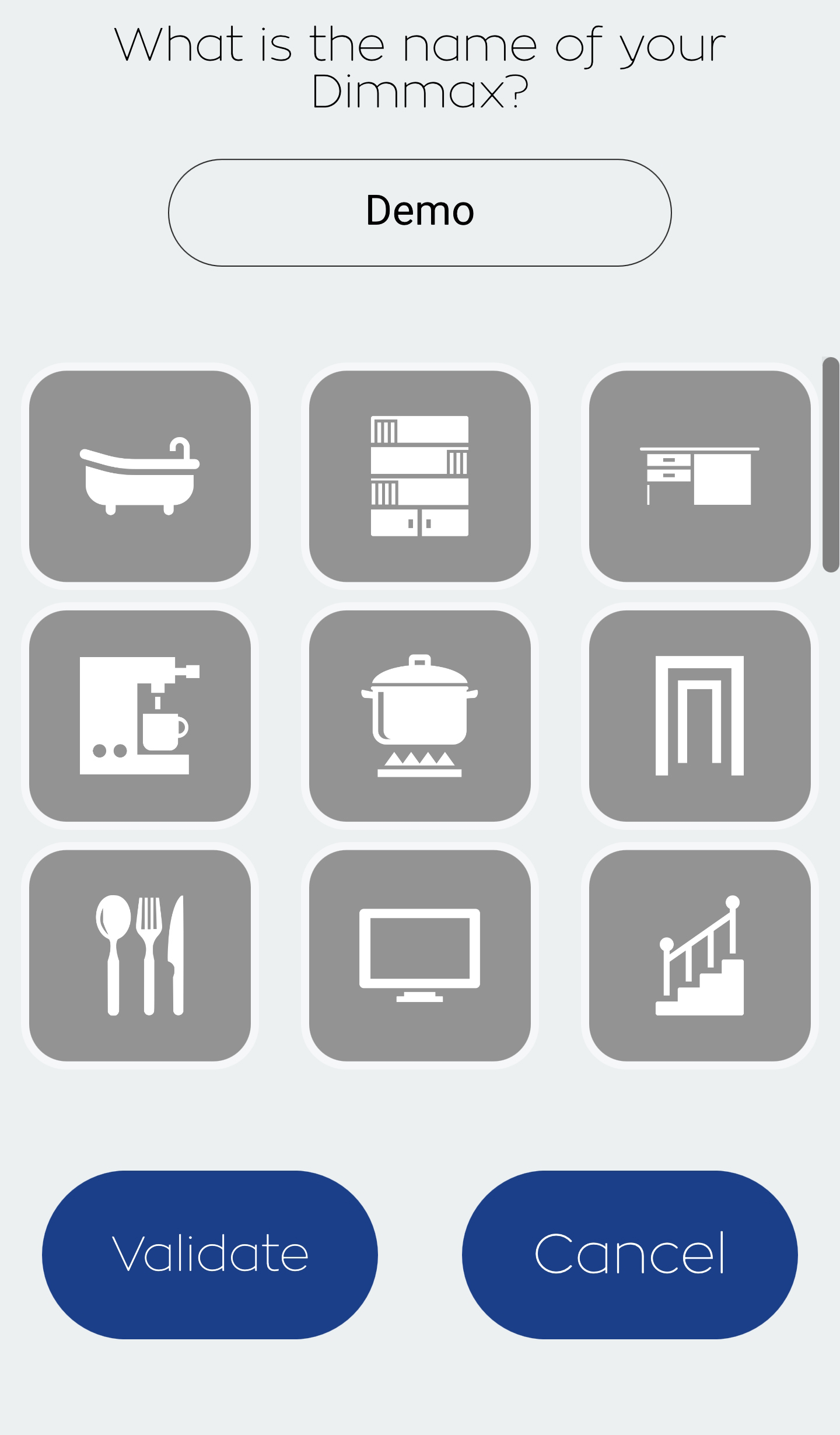
When you add a module without choosing an icon, the chosen icon is the question mark. When a question mark appears above the module name, simply go to the module's advanced settings to choose its custom icon.
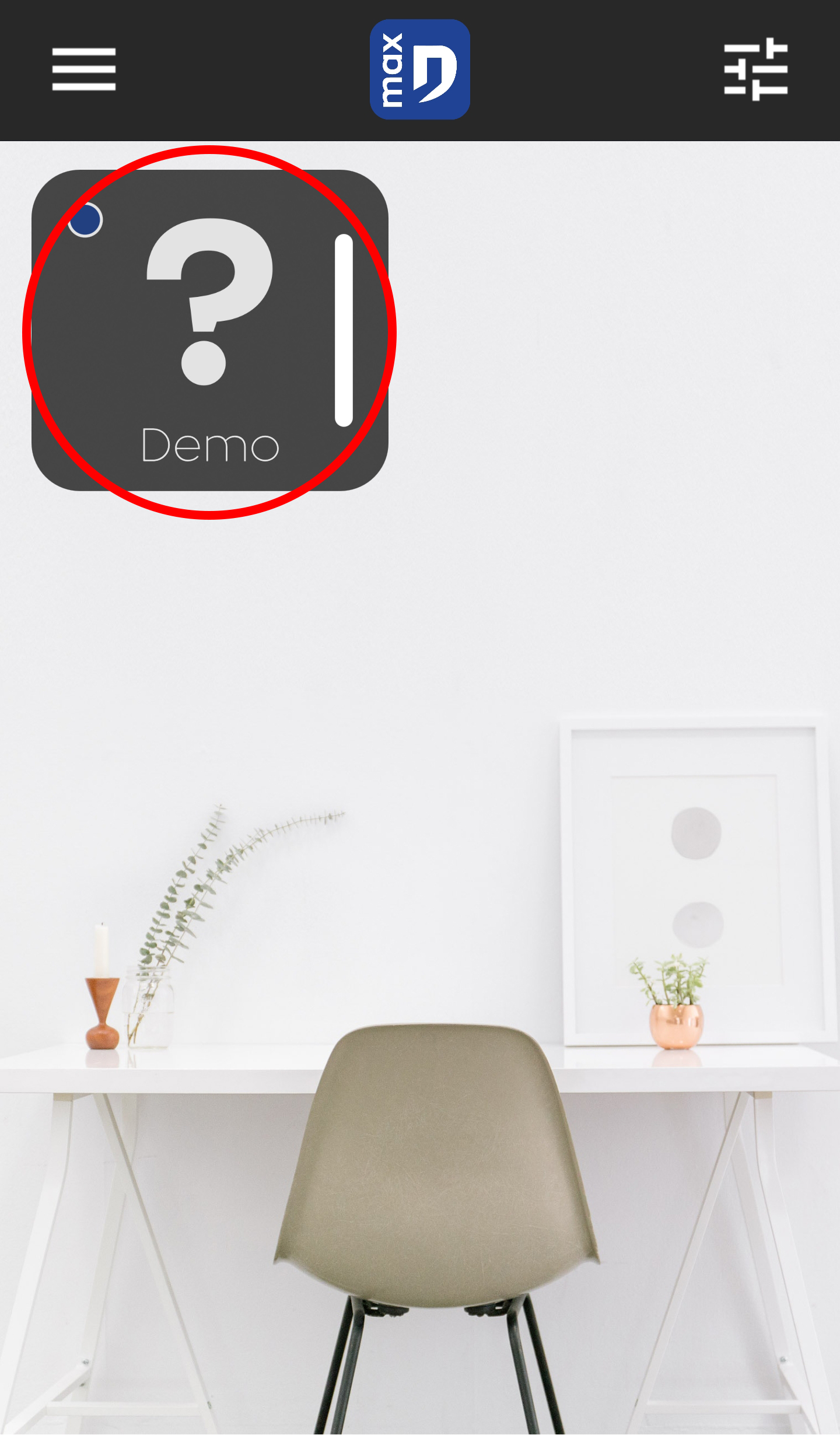
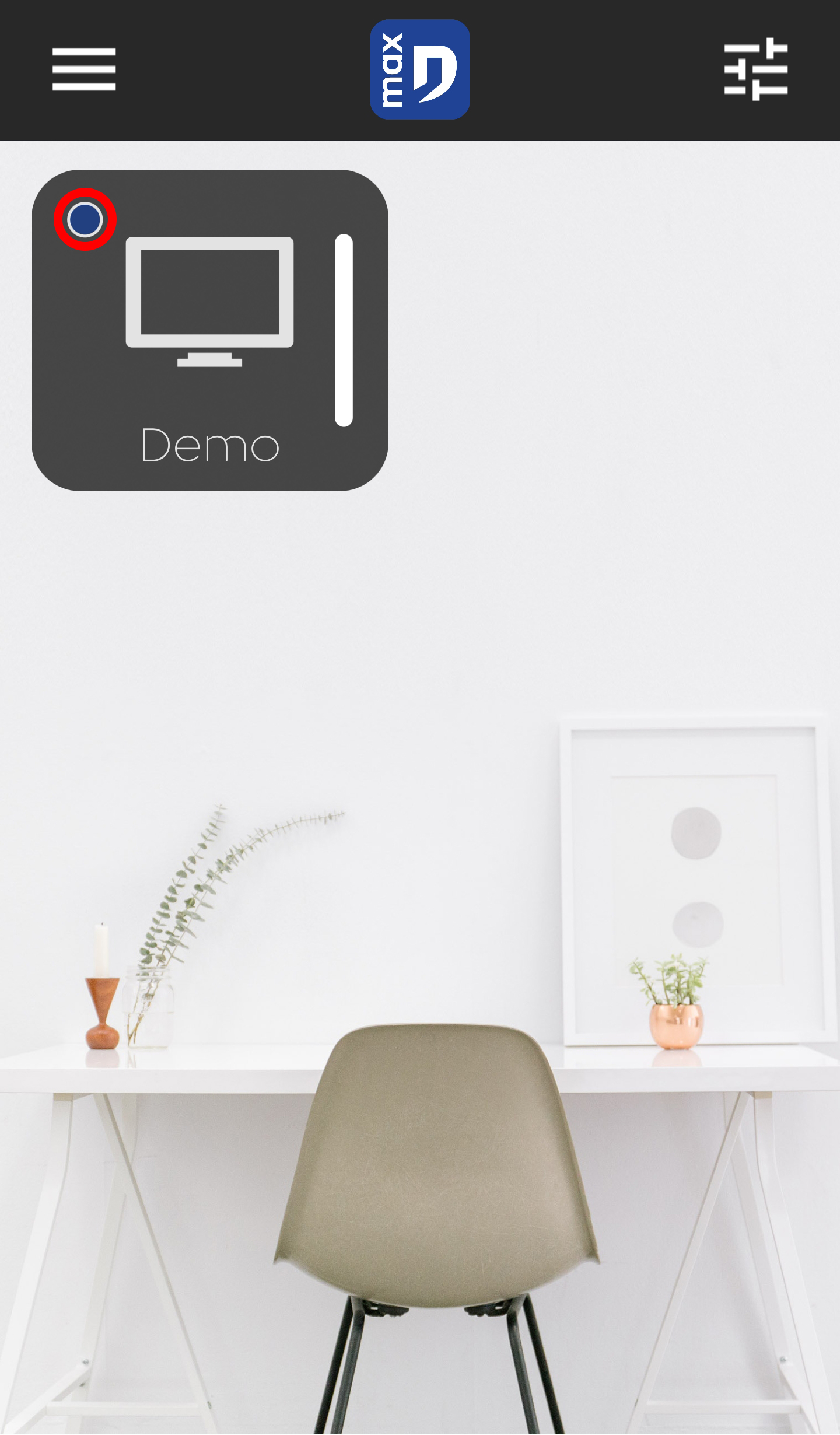
The circle in the top left-hand corner indicates the connection status. When the circle is empty, this means that the corresponding module is not yet connected.
When the circle is blue, the device is connected and ready to be controlled.
For some modules, it is possible to configure short and long presses. Make sure you have configured your module correctly.
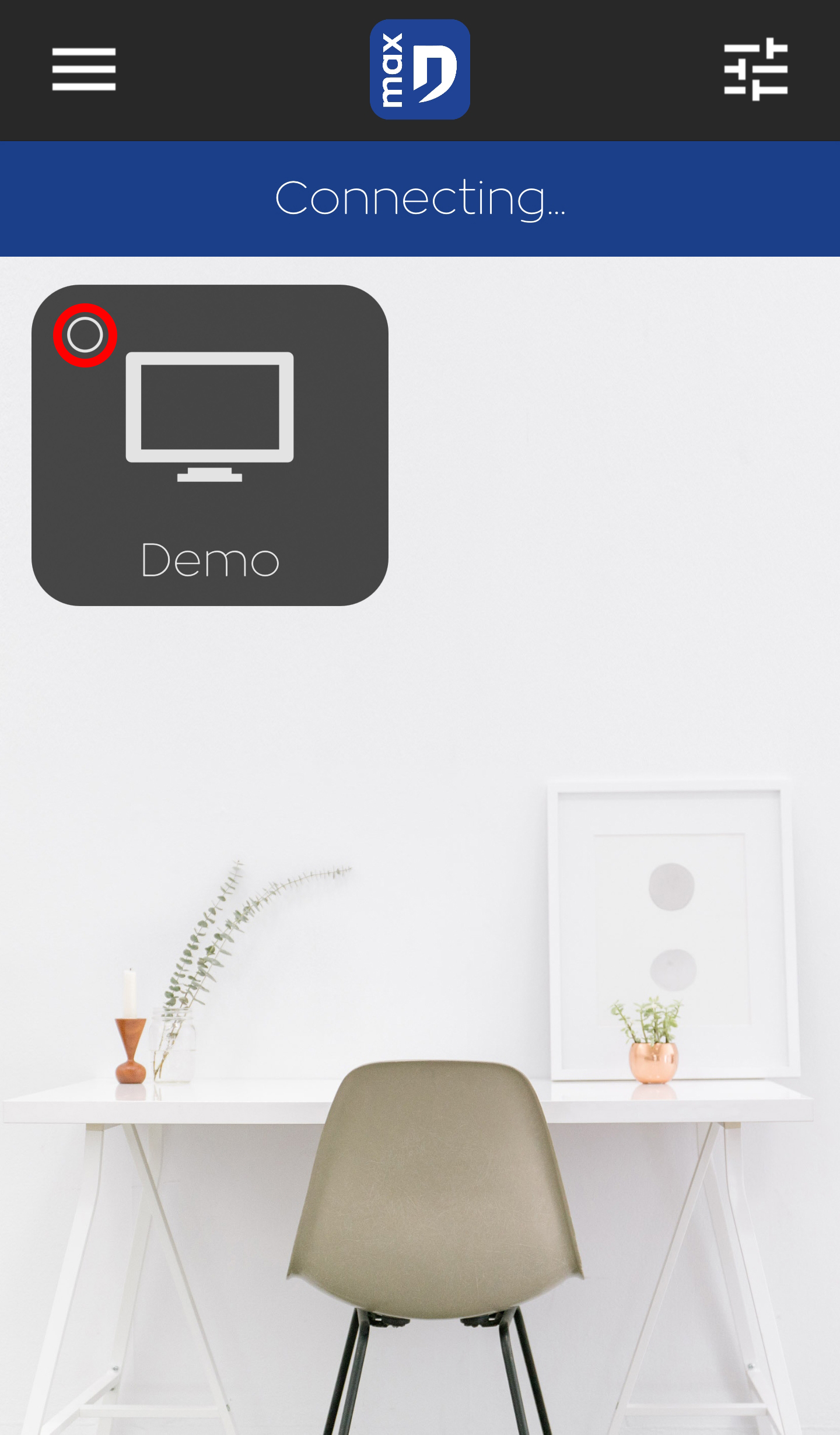
The authentication procedure prevents your modules from being controlled by people who have no access rights to the system.
Each new user must authenticate on first login to be added to the user list.
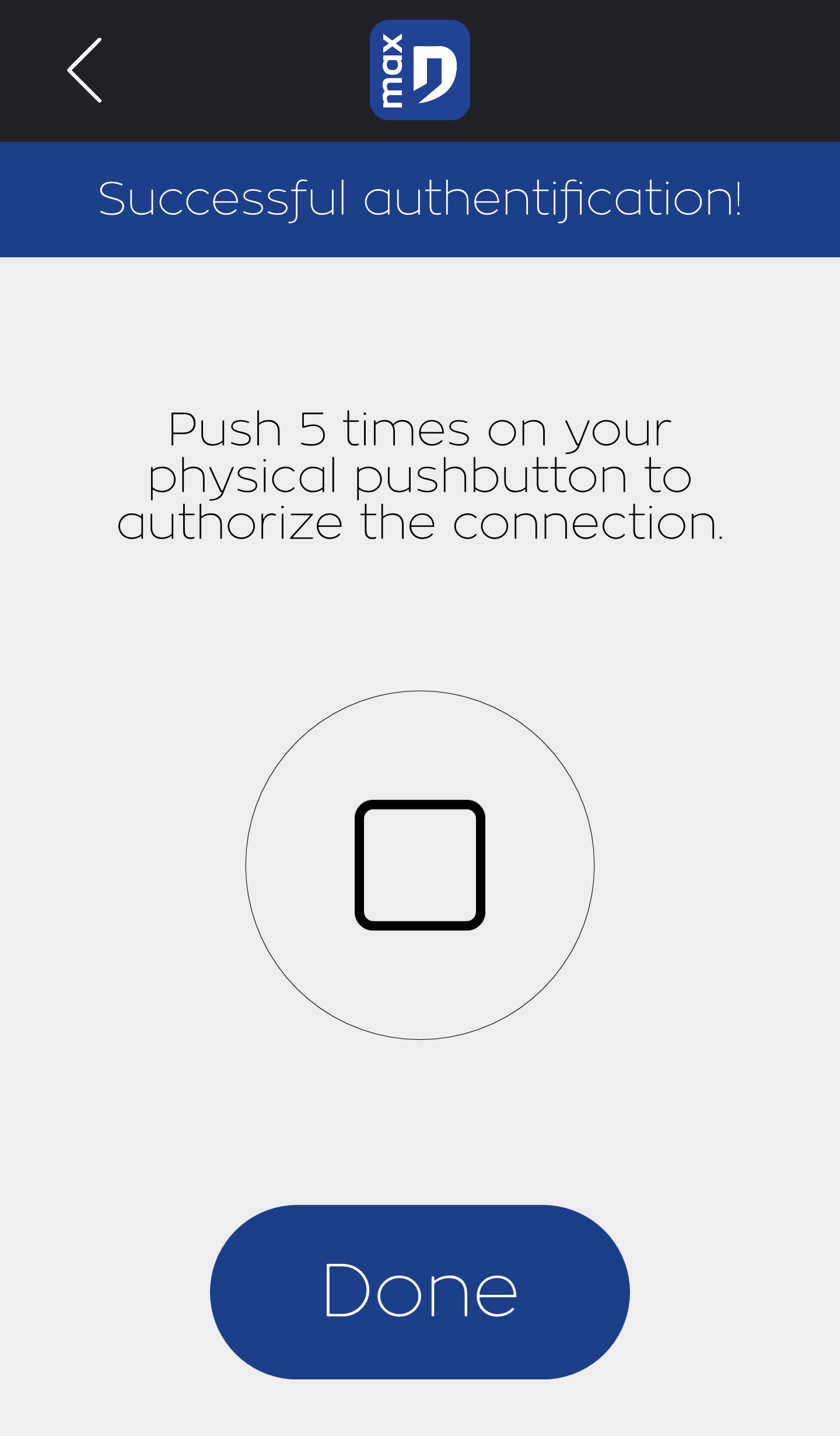
When the authentication screen appears, press the physical switch 5 times (it is therefore necessary/indispensable to have a physical button to use the application). When the presses are validated, a banner appears with "authentication successful".
The status of the button appears in this authentication window, allowing the user to see if the device is connected. If the status does not appear, go back, scan again and try again. This procedure only needs to be carried out once for the first connection.
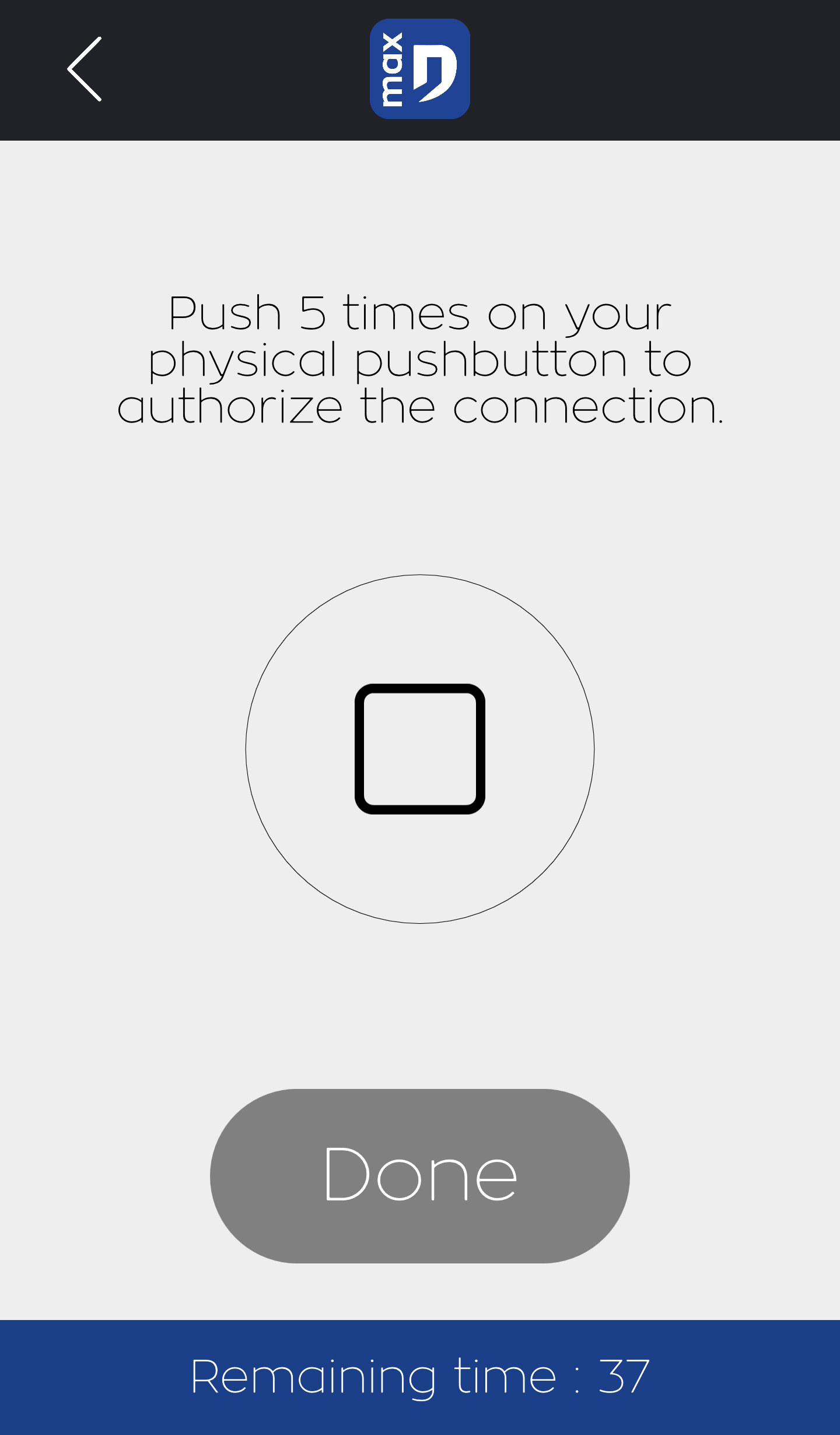
As explained in the authentication procedure, a physical button is required to get started. Once all users are correctly registered in the list, the button can be removed to control devices via Bluetooth® only.
The buttons must be wired for 230V as shown in the following diagram.
Please ensure that your button is correctly wired. The test can be carried out by controlling your outputs (dimming, activating/deactivating the relay).
If - despite correct wiring - the module does not want to be added, please contact technical support.
Each module has its own instructions for use, available for download from each product sheet on the dmaxbydomintell.com website.
A tutorial is also available in the mobile application.
The Dmax Bluetooth® system operates from a module.
This is the Bluetooth® MAC address of the module. This address is unique and identifies the module.
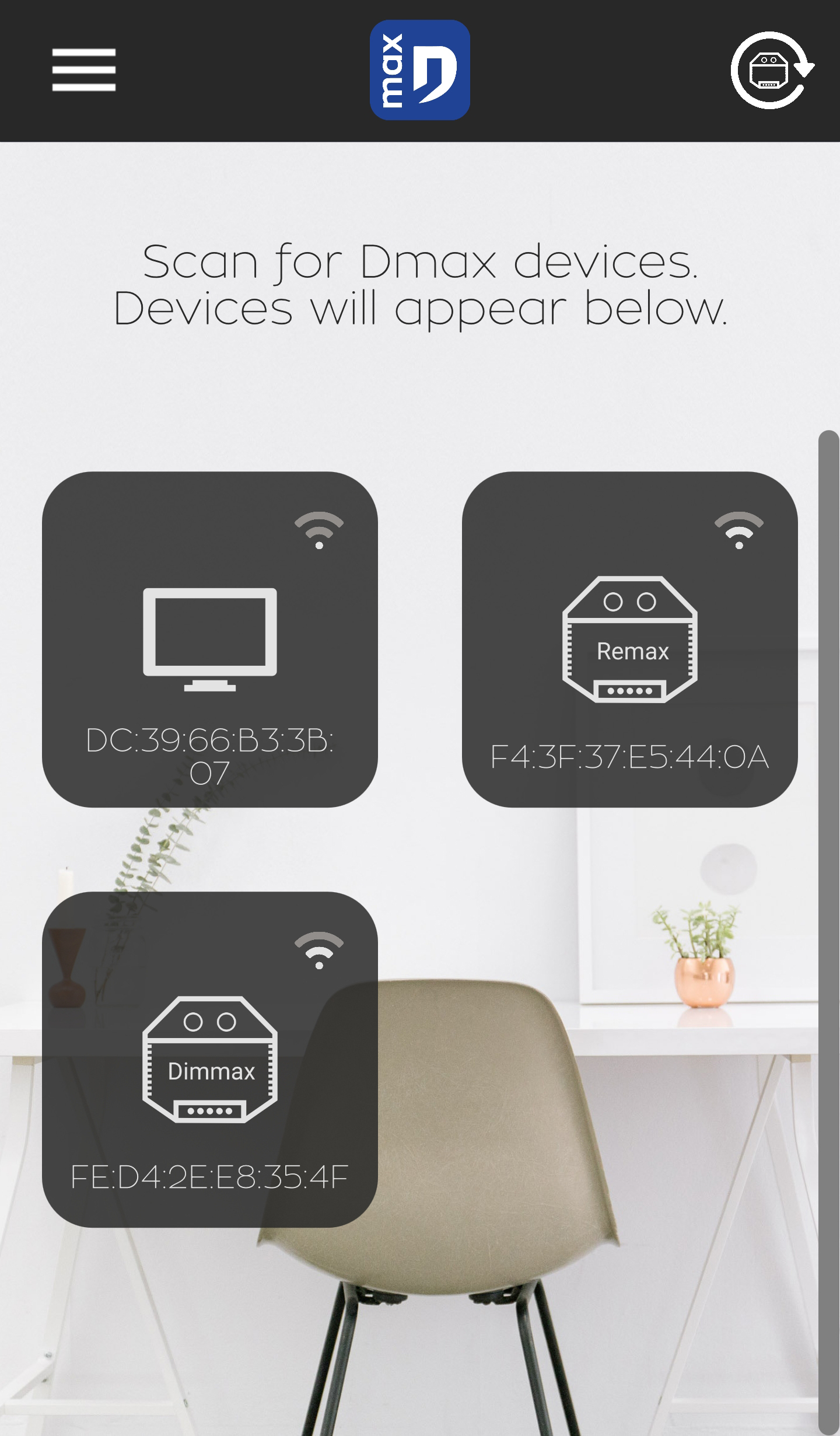
iOS hides the device's MAC address, which is not the case with Android.